

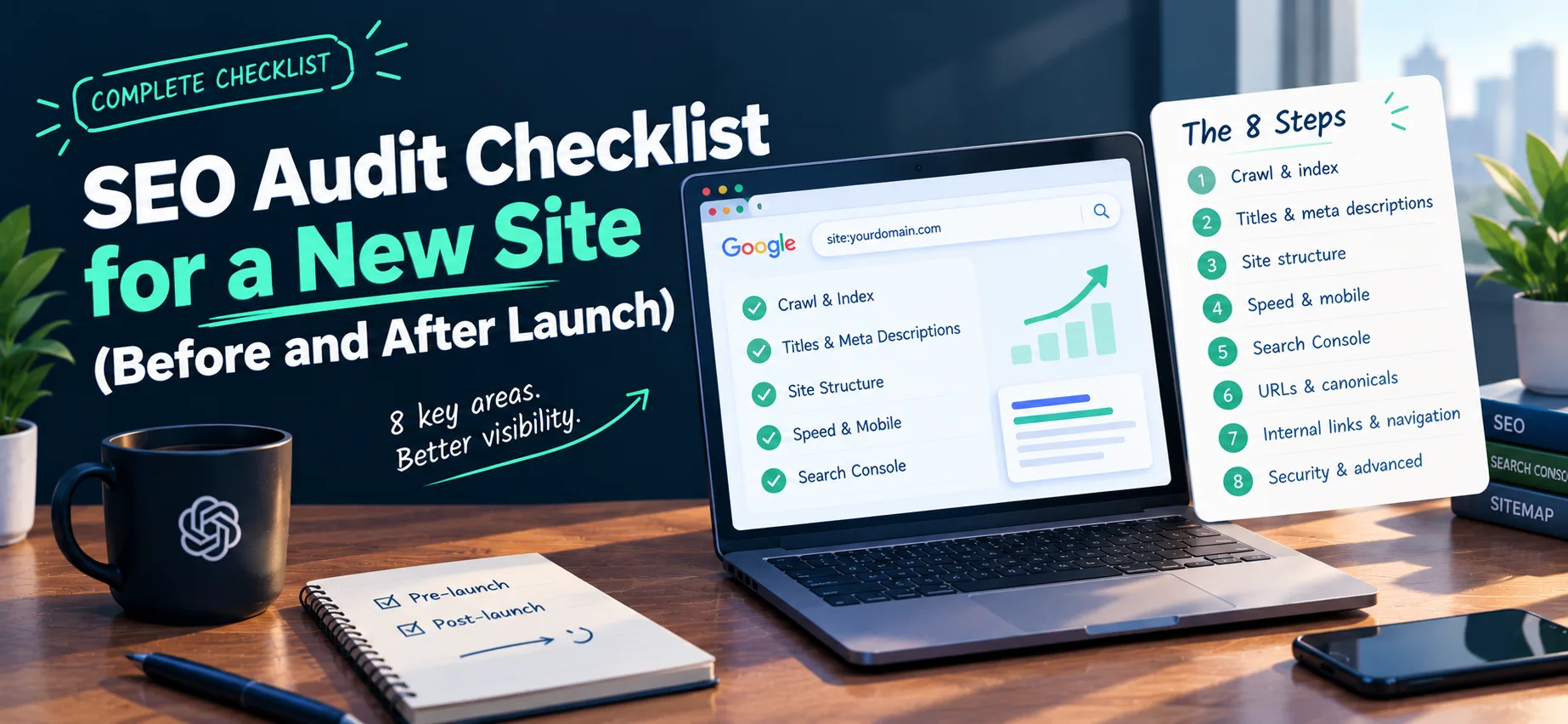
A new site needs five things checked before anything else: search engines are allowed to crawl and index it, every page has a unique title and description, the structure is clear, pages load quickly and work on mobile, and Google Search Console is set up. Work through the list below in order. The first section catches the mistakes that can keep a whole site out of search.
No checklist guarantees rankings, and new sites take weeks to months to show up. What this list does is remove the problems that would stop you from showing up at all.
Short on time? Do sections 1 to 3 first. Together they take about 15 minutes and cover the three things that decide whether Google can find and index your pages at all: crawl and index blocks, Search Console, and a sitemap. Everything after that improves how well you show up once you are in.
1. Make sure the site can be crawled and indexed
These are the most damaging problems, so check them first.
- Remove staging blocks. Sites are often built with a site-wide noindex tag or a blanket
Disallow: /in robots.txt. Both are meant to be removed at launch and often are not. Some CMS platforms also have a single setting, such as WordPress's "Discourage search engines from indexing this site", that adds a noindex for you. - Open
/robots.txton your domain. Confirm it does not block pages you want found. A wildcardDisallow: /shuts out every crawler that has no group of its own. - Check for noindex in two places. View the source of key pages and search for
noindexin the meta robots tag. Then check the HTTP headers, because a noindex can also be sent as anX-Robots-Tagheader that never appears in the page source. Runcurl -I https://example.com/(with your own domain) and look for anx-robots-tagline. - Fix robots.txt before noindex. If robots.txt blocks a page, crawlers never fetch it, so they never see a noindex on it. Clear the robots.txt block first, then deal with the tag.
- Use HTTPS everywhere. Redirect http to https and make sure one version of your domain, with or without www, is the main one.
- Test with the URL Inspection tool. In Search Console, inspect your homepage to see whether Google can crawl and index it.
Here is the difference that matters. This staging file blocks the whole site:
User-agent: *
Disallow: /
This launch file blocks only a private folder and points to the sitemap:
User-agent: *
Disallow: /admin/

Sitemap: https://example.com/sitemap.xml
One extra slash is all it takes to go from open to closed, which is why this is the first thing to read on launch day.
2. Set up Google Search Console and Bing Webmaster Tools
- Verify your domain. A domain property verified with a DNS record covers every subdomain and both http and https in one go.
- Submit your sitemap.
- Check the Pages report for pages excluded and the reasons given.
- Add your site to Bing Webmaster Tools too. Bing is a separate search engine with its own index, and it can import your site straight from Search Console.
Search Console is where you will see impressions, clicks and indexing problems from here on.
3. Create and submit a sitemap
- Generate a
sitemap.xmllisting the pages you want indexed. - Reference it in robots.txt with a
Sitemap:line. - Submit it in Search Console.
A sitemap helps search engines discover pages. It does not guarantee any page gets indexed. Step-by-step: How to create and submit an XML sitemap.
4. Titles and meta descriptions
- Give every page its own title tag, around 50 to 60 characters, with the main topic first. See our guide on title tag length for the detail.
- Write a unique meta description for each page. It does not directly affect ranking, but it can shape the snippet and the click.
- Avoid leaving default titles such as "Home" or "Untitled" from your theme or framework.
5. Headings and content
- One clear H1 per page that says what the page is about.
- Use H2 and H3 headings in order to structure the content. If yours are out of order, see How to fix your heading structure.
- Answer the main question early on the page. Do not bury it under an introduction.
- Check that the content is original and useful, not thin pages created to hold a keyword.
- Show a visible publish date and, when you revise a page, an updated date, so readers and search tools can see how current it is. See How to add a publish and updated date to your pages.
- Make sure the text is in the page HTML, not only added later by scripts, so a crawler that does not run JavaScript can still read it. To test it, view the page source and confirm your main text is there.
6. URLs and canonical tags
- Keep URLs short, readable and lowercase.
- Add a self-referencing canonical tag to each indexable page. Our guide on how to check canonical tags walks through it.
- Make sure redirects, internal links, canonicals and your sitemap all point at the same version of each URL.
7. Internal links and navigation
- Link to every important page from somewhere on the site, so none is an orphan. See How to add internal links to a page.
- Use descriptive link text, not "click here".
- Keep important pages within a few clicks of the homepage.
8. Speed and mobile
- Test with PageSpeed Insights or Lighthouse.
- Aim for Google's Core Web Vitals thresholds, measured for the typical visitor: Largest Contentful Paint within 2.5 seconds, Interaction to Next Paint within 200 milliseconds, and Cumulative Layout Shift of 0.1 or less.
- Expect only lab data at first. PageSpeed Insights shows real-visitor data once a site has enough traffic, and a brand-new site often does not, so treat early scores as a guide to what to fix, not a final grade.
- Check the largest element on the page, usually a hero image, because it is the most common cause of a slow Largest Contentful Paint.
- Compress images and set their dimensions.
- Include the viewport meta tag and check pages on a real phone.
9. Images
- Add descriptive alt text to meaningful images. Missing on many? See How to fix missing image alt text.
- Use descriptive file names.
- Use modern formats and sensible sizes.
10. Structured data and social tags
- Add structured data that matches what is on the page, such as Organization, Article or Product. Test it with Google's Rich Results Test. Valid markup makes a page eligible for rich results but does not guarantee them.
- Add Open Graph tags so links look right when shared.
- Add a favicon.
11. Errors and redirects
- Fix broken internal links.
- Make sure missing pages return a real 404 status, not a 200 with an error message.
- Use 301 redirects for pages that moved permanently, and avoid redirect chains.
12. Files for AI tools
- Check that robots.txt does not block AI crawlers you want to reach you. The AI crawler checker lists which ones your rules allow. If a rule is blocking them by mistake, see Fix: robots.txt blocking AI bots by accident, and for a single crawler, How to allow or block GPTBot in robots.txt.
- Consider publishing an llms.txt file. No search engine requires it, it does not allow or block anything, and we publish one on our own sites as part of the foundation. Read What is llms.txt, and do you need one, then How to write an llms.txt file, with template. Check yours with the llms.txt checker.
13. Tracking
- Install analytics.
- Make sure it respects your consent requirements. Test it by declining consent and confirming no analytics requests fire.
- Open the real-time report and visit your own site to confirm it records the visit.
- Note your launch date, so you can compare before and after.
What you will see in Search Console, and what it usually means
- "Blocked by robots.txt": usually a leftover
Disallow: /or an overly broad rule. Look at section 1. - "Excluded by 'noindex' tag": usually a staging tag, a CMS setting or an
X-Robots-Tagheader. Look at section 1. - Sitemap "Couldn't fetch": usually a wrong sitemap URL, a block, or a redirect. See the sitemap guide and section 3.
- "Discovered - currently not indexed": Google knows the URL but has not crawled it yet, which is common on new sites. Look at section 7, then wait.
- "Duplicate, Google chose different canonical than user": canonicals, redirects and links point at different versions. See how to check canonical tags and section 6.
- Impressions but few clicks: usually a weak title or description. See title tag length and section 4.
After launch: what to do in the first month
Week 1
- Confirm the homepage passes URL Inspection and submit your key URLs in Search Console.
- Confirm the sitemap shows as successfully read.
Weeks 1 to 4
- Check the Pages report for indexing problems each week.
- Fix anything in the list above before adding new pages, so problems do not multiply.
After a few weeks
- Look at impressions and clicks by page.
- A page with impressions but few clicks needs a better title or description. A page with clicks but little action needs a better first screen.
The fast way to run the basics
Run your homepage and a few key pages through the free SEO checker to catch the on-page issues in one pass, then work through the list above for the parts a scanner cannot see, such as content quality and Search Console setup.
Related posts
- What Is the Ideal Title Tag Length for SEO
- How to check canonical tags
- How to create and submit an XML sitemap
- How to add meta description and Open Graph tags
- How to fix your heading structure
- How to add internal links to a page
- How to fix missing image alt text
- How to add a publish and updated date to your pages
- Structured Data for Beginners: What to Add First
- What is llms.txt, and do you need one
- How to write an llms.txt file, with template
- Fix: robots.txt blocking AI bots by accident
- How to allow or block GPTBot in robots.txt
Comments
No comments yet — be the first.