

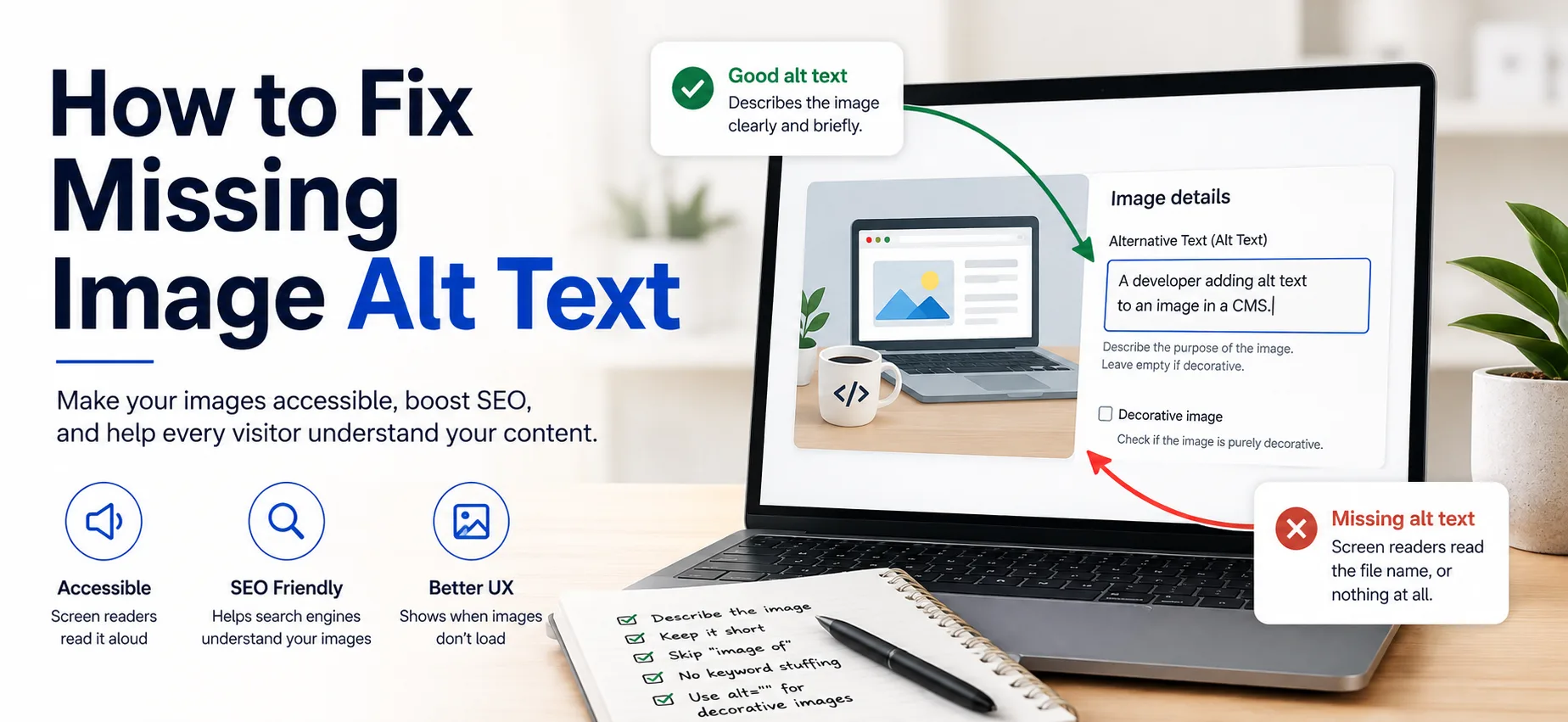
Add an alt attribute to every image that carries meaning, and describe what the image shows in one short sentence. For images that are purely decorative, use an empty one (alt=""). That is the whole fix. The rest of this post covers how to write it well, where to set it, and how to check that you got every image.
What alt text is for
Alt text is the text version of an image. It does three jobs:
- Screen readers read it aloud, so people who can't see the image still get its meaning.
- Browsers show it when the image fails to load.
- Search engines use it as one signal for understanding what an image is about.
It will not rescue a weak page, and nobody can promise it changes your rankings. It is basic on-page SEO hygiene, and it is quick to fix.
How to write good alt text
- Describe what the image shows, in the context of the page. Ask what you would say if you were reading the page to someone over the phone.
- Keep it short. One sentence is usually enough. Around 125 characters is a common rule of thumb, not a hard limit.
- Skip "image of" and "picture of". Screen readers already announce that it is an image.
- Don't stuff keywords. "seo tool best seo checker free seo" helps nobody.
- For linked images or buttons, describe the action, such as "Download the checklist", not the picture.
- For charts, state the main takeaway in the alt text and put the detail in the text beside it.
- For decorative images (dividers, background flourishes), use
alt="". This tells assistive tools to skip it.
The same image can need different alt text on different pages. A photo of a laptop on a pricing page might be alt="Laptop showing the pricing dashboard". On a page where it is only there for mood, it should be alt="".
Weak vs. better
- Weak:
alt="image". Better:alt="Terminal showing the output of a robots.txt check". - Weak:
alt="seo seo checker free". Better:alt="Score card from a free SEO scan showing 70 out of 100". - Weak:
alt="IMG_2043.jpg". Better:alt="Media library sidebar with the Alternative Text field filled in". - Weak: no
altattribute at all. Better:alt="Diagram of a sitemap pointing to three pages".
The code
<!-- Meaningful image -->
<img src="/images/robots-example.png"
     alt="A robots.txt file with a rule that blocks GPTBot">

<!-- Decorative image -->
<img src="/images/divider.svg" alt="">

<!-- Linked image: describe where it goes, not what it looks like -->
<a href="/downloads/checklist.pdf">
  <img src="/images/checklist-cover.png" alt="Download the checklist">
</a>
A missing alt attribute and an empty one are not the same thing. A missing attribute leaves tools guessing, and some read out the file name. An empty one is a deliberate "skip this".
What a screen reader does with it
<img src="team.jpg">: the user often hears the file name, such as "team dot jpg".<img src="team.jpg" alt="">: the user hears nothing, because the image is skipped.<img src="team.jpg" alt="Three developers reviewing code on one screen">: the user hears "Image, three developers reviewing code on one screen".
Where to set it
- Plain HTML: add the attribute to the
<img>tag. - WordPress: open the image in the media library and fill in the "Alternative Text" field. You can also set it in the block's sidebar.
- Next.js: the
next/imagecomponent requires analtprop, so write it where you place the image. - Other CMS or site builders: look for a field called "alt text", "alternative text" or "image description" in the image settings.
If you have hundreds of images, start with the ones on your most important pages and work outward.
Images that don't use <img>
Some images never get an alt attribute, so they are easy to miss.
- CSS background images have no alt text at all. If the image is decoration, that is fine. If it carries meaning, move it into an
<img>tag, or addrole="img"and anaria-labelto the element. - Inline SVG is not read by default in every tool. For a meaningful graphic, add
role="img"and anaria-label(or a<title>inside the SVG). For a decorative one, addaria-hidden="true". - Social preview images use their own tag. When you set
og:image, you can also setog:image:alt. Our guide to meta description and Open Graph tags shows where it goes.
<!-- Meaningful inline SVG -->
<svg role="img" aria-label="Bar chart: organic traffic doubled in six months" ...>
  ...
</svg>

<!-- Decorative inline SVG -->
<svg aria-hidden="true" ...>
  ...
</svg>
How to check
One page, no tools. Right-click the page, choose "View page source", and search for <img. Each tag should have an alt.
One page, in the browser console. Open DevTools, go to the Console, and run:
document.querySelectorAll('img:not([alt])')
It returns every image on the page with no alt attribute. To list the ones deliberately marked decorative, use img[alt=""] and confirm each one really is decoration.
Lighthouse. In Chrome DevTools, run a Lighthouse accessibility audit. It flags image elements that have no alt attribute, and it works on any page you can open.
The SEO checker. Run the SEO checker on the page. It looks at the images on that page and reports whether all, some or none have alt text.
None of these judge the wording. They check that the attribute is there, not that it is any good, so read your own alt text once as a person. If it would make no sense read aloud, rewrite it.
Common mistakes
- Using the file name as alt text (
alt="IMG_2043.jpg"). - Repeating the same alt text on every image.
- Adding long descriptions that duplicate the paragraph next to the image.
- Putting important text inside an image and not repeating it on the page.
- Leaving the attribute off decorative images instead of using
alt="".
Quick reference
- Photo or screenshot that adds meaning: one short sentence describing it in context.
- Decoration (divider, flourish):
alt="". - Linked image or button: describe the action or destination.
- Chart or graph: state the takeaway, put the detail in nearby text.
- Image of text: repeat the text in the alt and on the page.
- CSS background: nothing if decorative, otherwise use
<img>orrole="img". - Inline SVG:
role="img"andaria-label, oraria-hidden="true".
Where to go next
Alt text is one fix on a longer list. Once your images are covered:
- Work through the full audit checklist to see what else a new site needs.
- Add internal links so your best pages are easy to reach.
- Learn what to add first in structured data, which describes the page the way alt text describes an image.
Done with this one? Read the glossary entry on alt text, then run the SEO checker to confirm every image on your page is covered.
Comments
No comments yet — be the first.