

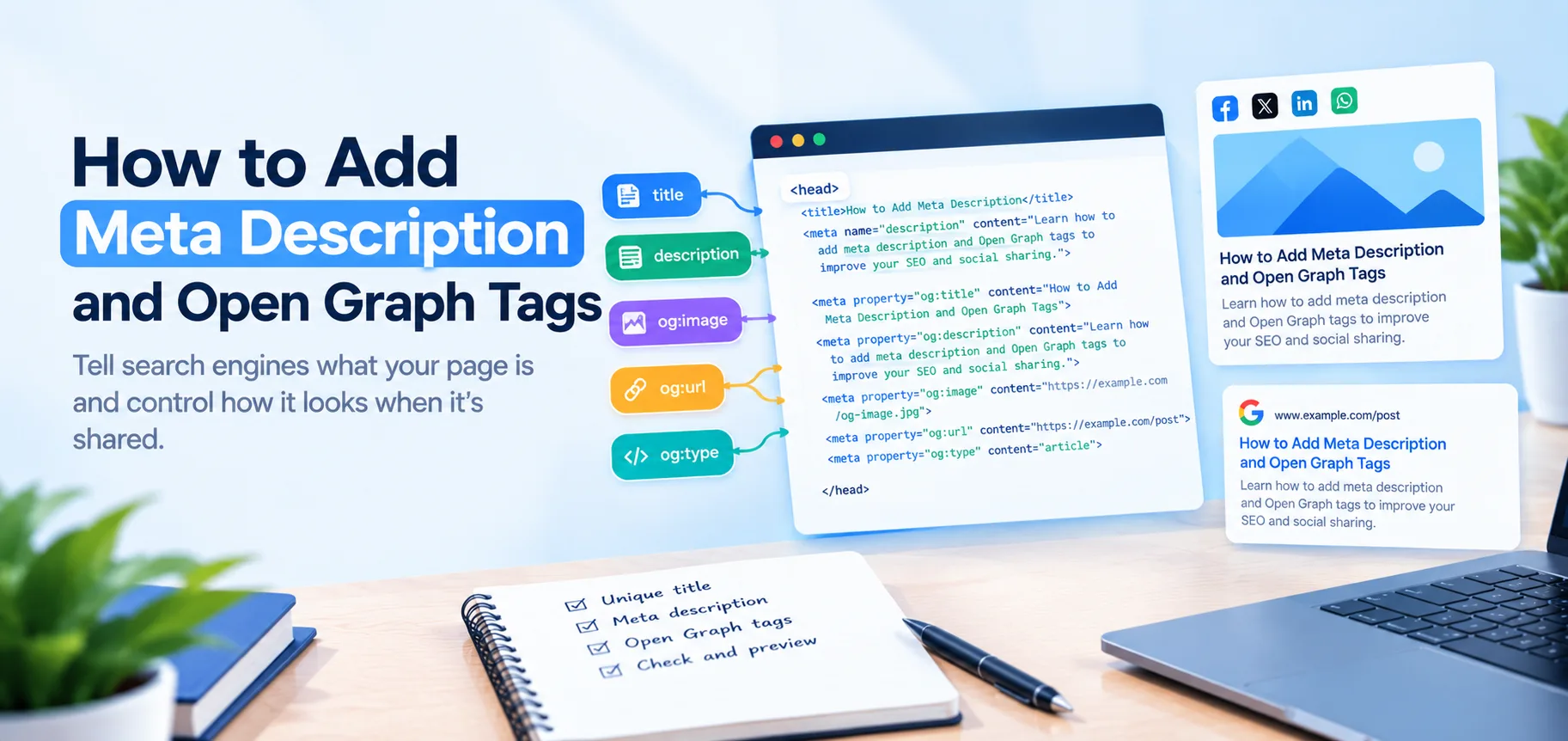
Add a unique title, a meta description and the core Open Graph tags (og:title, og:description, og:image, og:url, og:type) to the <head> of every page. The title and description tell search engines what the page is. The Open Graph tags control how the page looks when someone shares the link. The AEO checker looks for this set.
What each tag does
- Title tag: the page title shown in browser tabs and often in search results.
- Meta description: a short summary. Search engines may show it under your title, but they can also write their own snippet from the page.
- Open Graph tags: used by social platforms, chat apps and other tools to build the preview card (title, description and image) when a link is shared.
None of these guarantees rankings or clicks. They are the basic labels for your page, and they are cheap to get right.
Open Graph tags are about how a shared link looks. They are not the same as structured data, which describes what a page is in a format machines can read. If you want that next layer, see structured data for beginners: what to add first.
The tags
<head>
  <title>How to check canonical tags | Example</title>
  <meta name="description" content="Find the canonical tag on any page, check it points to the right URL, and fix the common mistakes.">

  <meta property="og:title" content="How to check canonical tags">
  <meta property="og:description" content="Find the canonical tag on any page, check it points to the right URL, and fix the common mistakes.">
  <meta property="og:image" content="https://example.com/images/canonical-tags-og.png">
  <meta property="og:url" content="https://example.com/blog/how-to-check-canonical-tags">
  <meta property="og:type" content="article">
</head>
How to write each one
- Title: describe the page in plain words. For length, see what is the ideal title tag length for SEO.
- Description: one or two sentences that say what the page covers and who it helps. Around 150 to 160 characters is a common rule of thumb, though search engines may cut or rewrite it. Write it for people, not as a keyword list.
og:titleandog:description: can match the title and description, or be tuned for sharing.og:image: use an absolute URL (starting withhttps://). A common size is 1200 by 630 pixels. Use text that stays readable when the image is shown small.og:url: the canonical address of the page. If you are not sure what yours is, see how to check canonical tags.og:type:websitefor the home page,articlefor posts.
Every page should have its own title and description. Copying the same one across the site makes pages harder to tell apart.
A broken head and its fix
This head has three of the most common problems: a relative image path, an og:url that does not match the canonical, and no og:type.
<head>
  <title>Blog</title>
  <meta name="description" content="Blog">
  <link rel="canonical" href="https://example.com/blog/how-to-check-canonical-tags">

  <meta property="og:title" content="How to check canonical tags">
  <meta property="og:image" content="/images/og.png">
  <meta property="og:url" content="https://example.com/blog/how-to-check-canonical-tags/?ref=home">
</head>
Here is the fixed version:
<head>
  <title>How to check canonical tags | Example</title>
  <meta name="description" content="Find the canonical tag on any page, check it points to the right URL, and fix the common mistakes.">
  <link rel="canonical" href="https://example.com/blog/how-to-check-canonical-tags">

  <meta property="og:title" content="How to check canonical tags">
  <meta property="og:description" content="Find the canonical tag on any page, check it points to the right URL, and fix the common mistakes.">
  <meta property="og:image" content="https://example.com/images/canonical-tags-og.png">
  <meta property="og:url" content="https://example.com/blog/how-to-check-canonical-tags">
  <meta property="og:type" content="article">
</head>
What changed: the title and description now describe the page, the image uses a full URL, og:url matches the canonical exactly with no tracking parameter, and the missing tags are added.
Optional: image alt text and X (Twitter) cards
Two extras are worth adding once the core set is in place.
og:image:alt: a short description of the preview image, for people who cannot see it. It follows the same idea as image alt text on the page itself.twitter:card: X uses your Open Graph title, description and image when it can, but it needstwitter:cardto know what kind of card to show.summary_large_imagegives the big image preview.
<meta property="og:image:alt" content="A page head with title, description and Open Graph tags highlighted">
<meta name="twitter:card" content="summary_large_image">
These are not part of the core set, so leaving them out will not break the basics.
What the checker reports
The AEO checker looks for the set in this post: the title, the meta description, and og:title, og:description, og:image, og:url and og:type. It reports one of three results:
- Pass: all the tags are present. Keep them accurate.
- Partial credit: some are missing. Add the ones that are missing.
- Fail: none are present. Add the set above.
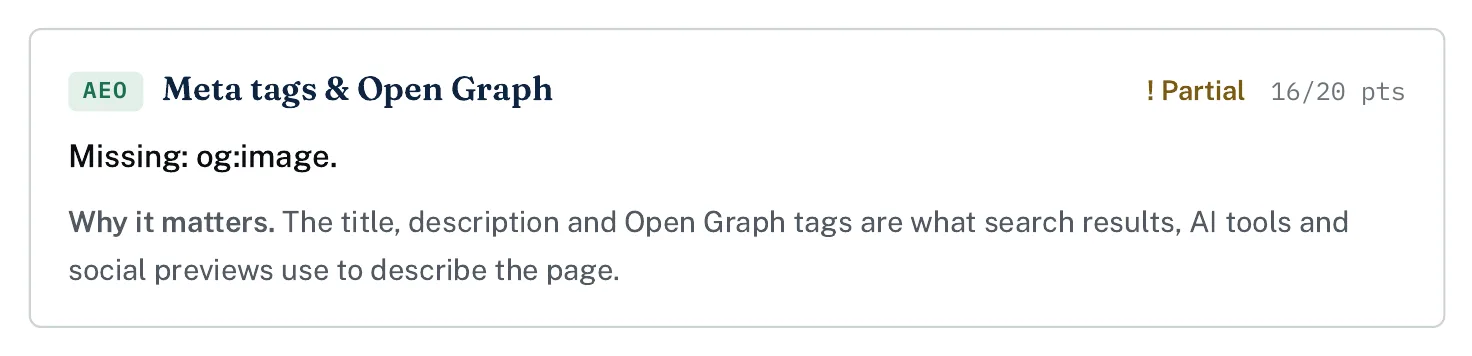
A partial result: the page has most tags but is missing og:image.
Where to set them
- Next.js (App Router): export a
metadataobject, orgenerateMetadatafor dynamic pages. See the example below. - WordPress: an SEO plugin gives each page and post fields for title, description and social image.
- Shopify and site builders: use the page's SEO settings, and the social sharing image setting.
- Plain HTML: paste the tags into the
<head>.
Next.js example
Set metadataBase once in your root layout, so relative URLs are resolved to full ones:
// app/layout.tsx
export const metadata = {
  metadataBase: new URL('https://example.com'),
}
Then build each page's metadata from its content:
// app/blog/[slug]/page.tsx
import type { Metadata } from 'next'

export async function generateMetadata(
  { params }: { params: Promise<{ slug: string }> }
): Promise<Metadata> {
  const { slug } = await params
  const post = await getPost(slug) // your own data function

  return {
    title: post.title,
    description: post.description,
    alternates: { canonical: `/blog/${slug}` },
    openGraph: {
      title: post.title,
      description: post.description,
      url: `/blog/${slug}`,
      type: 'article',
      images: [{ url: post.image, width: 1200, height: 630, alt: post.imageAlt }],
    },
    twitter: { card: 'summary_large_image' },
  }
}
For a page with fixed content, export a plain metadata object with the same fields instead.
If you are setting up tags across a whole new site, the SEO audit checklist for a new site covers the other items to check at the same time.
How to check
View the source. Open the page, view the source and search for og:.
List every tag in the Console. Open your browser's developer tools, go to the Console, and run:
console.table([...document.querySelectorAll('title, meta[name="description"], meta[property^="og:"], meta[name^="twitter:"]')].map(e => ({ tag: e.tagName === 'TITLE' ? 'title' : (e.getAttribute('name') || e.getAttribute('property')), value: e.tagName === 'TITLE' ? e.textContent : e.content })))
To check the description length, run:
document.querySelector('meta[name="description"]').content.length
See the preview card. Paste the link into a chat app or a sharing preview tool.
Or run the checker. The AEO checker reports which tags it found on the page.
If the old image still shows. Platforms cache previews. Change the image file name or add a version to its URL (for example og.png?v=2), update og:image, and share the link again. Some platforms also offer their own tool to refresh a cached preview, such as the Facebook Sharing Debugger and the LinkedIn Post Inspector.
Common mistakes
- Relative image paths such as
/images/og.png. Use the full URL. - The same description on every page.
- An
og:urlthat differs from the canonical URL. - An image that is tiny, blurry or has text too small to read.
- Descriptions that only list keywords.
The short version
Give every page its own title and description, plus og:title, og:description, og:image (full URL), og:url (same as the canonical) and og:type. Add og:image:alt and twitter:card if you can. List the tags in the Console, then run the AEO checker to confirm.
Comments
No comments yet — be the first.